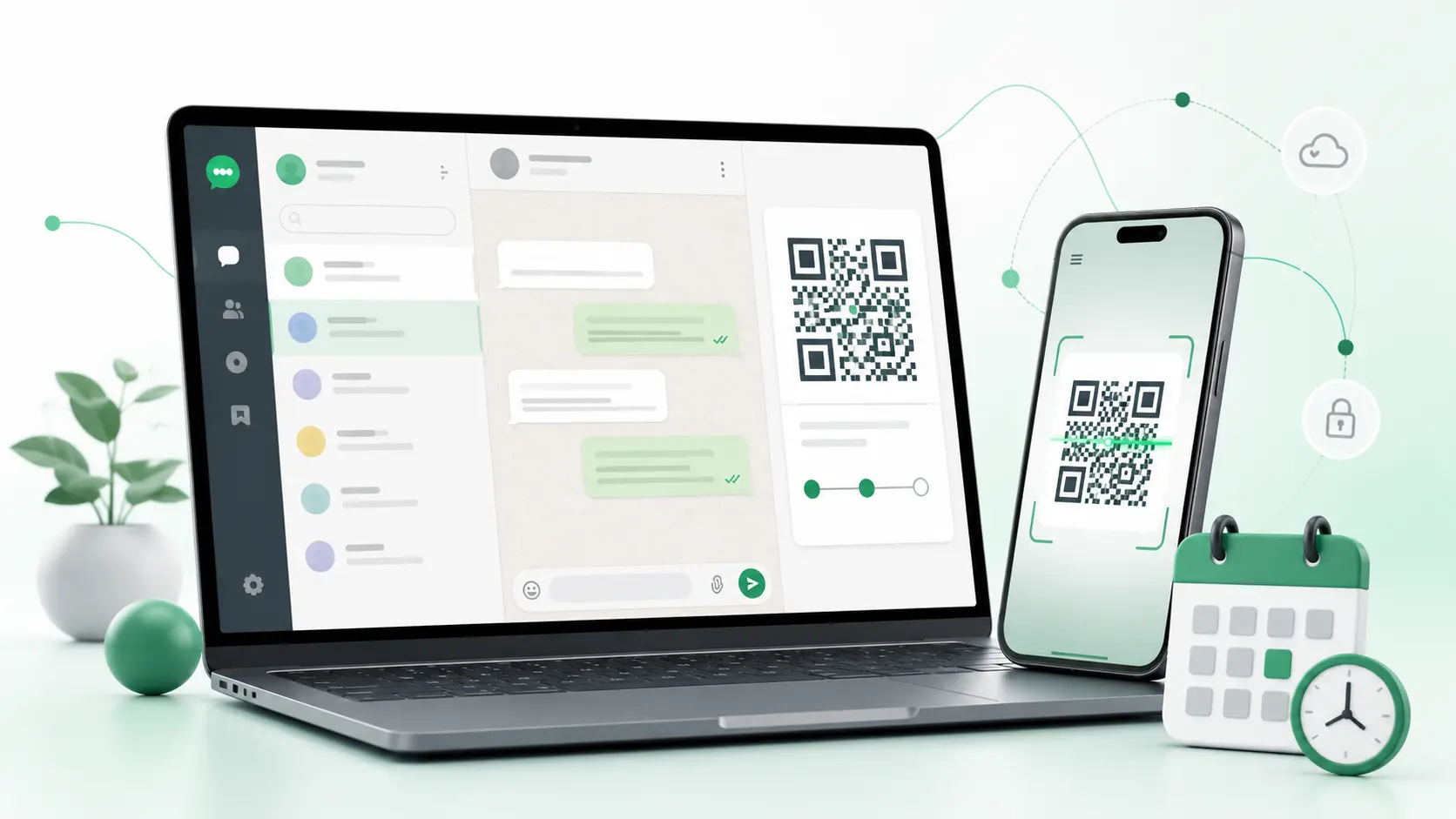
WhatsApp Web gives you access to your existing WhatsApp conversations through a computer browser. It is useful for typing longer replies, sharing files from your computer and managing chats without repeatedly checking your phone. This guide explains both login methods, how linked devices work, which features are available and what to try when WhatsApp Web stops working. It was reviewed against WhatsApp’s current Help Center guidance on August 24, 2026.
Quick answer: Open web.whatsapp.com, link your account using a QR code or phone number, and your chats will load in the browser. Once linked, WhatsApp Web can continue working even when your phone is offline.
What Is WhatsApp Web and How Does It Work?
WhatsApp Web is the official browser version of WhatsApp. It connects to the account registered on your primary phone and displays the same contacts, groups and conversations on your computer.
It does not create another WhatsApp account. Messages sent from your browser appear in the same conversation on your phone, while incoming replies are synchronised across your linked devices. Personal messages and calls remain protected by end-to-end encryption.
The WhatsApp Web version is useful when you want to:
- Type using a full keyboard.
- Share files stored on your computer.
- Search longer conversations more easily.
- Keep WhatsApp open alongside your other work.
- Manage personal or business conversations from a larger screen.
You may see WhatsApp Web described as an app, but the Web version runs inside a browser and does not require installation.
How Do You Log In to WhatsApp Web?
You can connect WhatsApp Web using either a QR code or your phone number. Both methods require access to the primary phone when linking the browser.
Log In With a QR Code
- Open web.whatsapp.com on your computer.
- Open WhatsApp on your phone.
- On Android, tap the three-dot menu. On iPhone, open Settings.
- Select Linked Devices.
- Tap Link a Device.
- Scan the QR code shown on your computer.
- Wait for your conversations to load.
If the code expires before you scan it, refresh the page. WhatsApp Web works on recent versions of Chrome, Microsoft Edge, Firefox, Safari and Opera.
Log In With Your Phone Number
WhatsApp also provides an official login method that does not require scanning the QR code:
- Select Link with phone number on the WhatsApp Web login page.
- Choose your country and enter the number registered to WhatsApp.
- Note the linking code displayed on your computer.
- Open Linked Devices on your primary phone.
- Tap Link a Device.
- Select Link with phone number instead.
- Enter the code displayed in the browser.
This method is helpful when the camera cannot read the QR code. You still need the primary phone to approve the connection.
Does WhatsApp Web Work When Your Phone Is Off?
Yes. After the browser has been linked, WhatsApp Web can continue sending and receiving messages while the primary phone is switched off or disconnected from the internet.
WhatsApp’s multi-device system gives each linked device its own secure connection. Your phone is still required to register the account, approve new devices and manage existing sessions, but it does not need to stay online during normal browser use.
You can connect up to four linked devices in addition to the primary phone. If you do not use your phone for more than 14 days, WhatsApp may automatically disconnect the linked devices and ask you to reconnect.
What Can You Do on WhatsApp Web?
WhatsApp Web supports most everyday messaging tasks, including:
- Sending and receiving messages.
- Replying, reacting, forwarding, editing and deleting.
- Sharing photos, videos and documents.
- Recording and playing voice messages.
- Searching, archiving, muting and pinning chats.
- Creating and managing groups.
- Viewing and posting Status updates.
- Using supported polls and event features.
- Receiving browser notifications.
- Making voice and video calls on supported browsers.
The drag-and-drop option is particularly useful. You can move an invoice, image, presentation or PDF directly from your computer into a conversation without searching through the attachment menu.
Browser calling requires permission to use your microphone and camera. If the call buttons are unavailable, update your browser and check WhatsApp’s current Web calling requirements.
WhatsApp Web still has some limitations. The phone remains necessary for registering the account and changing the associated number. Some settings and newer features may also appear on the mobile app before reaching the browser.
Most importantly, WhatsApp Web does not provide native message scheduling or automated follow-up sequences.
WhatsApp Web vs WhatsApp Desktop vs the Mobile App
All three options access the same WhatsApp account, but each is suited to a different situation.
Use the WhatsApp Web browser version when you need quick access or cannot install software on the computer. Choose the Desktop app if you use WhatsApp throughout the day and prefer a dedicated window with more consistent notifications.
The mobile app remains essential for registering the account, linking devices and managing certain account settings.
Why Is WhatsApp Web Not Working?
Most WhatsApp Web problems come from the QR code, browser, internet connection or linked-device session. Start with the symptom you can see.
The QR Code Will Not Scan
Clean the phone camera, increase the computer screen brightness and keep the complete QR code inside the scanning frame.
If it still fails:
- Refresh the page to generate a new code.
- Update WhatsApp on your phone.
- Reset the browser zoom to 100%.
- Restart WhatsApp.
- Use Link with phone number instead.
WhatsApp Web Will Not Load
Check whether other websites load normally. If your connection is working, refresh WhatsApp Web and update your browser.
You can then:
- Clear cookies and cached files for whatsapp.com.
- Temporarily disable extensions that may block the page.
- Open WhatsApp Web in a private window.
- Try another supported browser.
- Test a different internet connection.
Workplace or school networks may block WhatsApp Web. If it works on another network, the original network is probably restricting access.
WhatsApp Web Is Stuck on Connecting
A newly linked browser may need a moment to load older conversations. If new messages are also missing, check your computer’s connection and confirm that you linked the correct account.
Refresh the page first. If syncing remains stuck, log out, remove the browser from Linked Devices and connect it again.
WhatsApp Web Keeps Logging Out
Repeated logouts commonly happen when:
- Browser cookies are automatically deleted.
- You use Incognito or Private mode.
- Someone removes the browser from Linked Devices.
- A browser-cleaning tool removes the saved session.
- The primary phone remains inactive for an extended period.
Use a normal browser window and check Linked Devices on your phone to see whether the computer is still authorised.
Desktop Notifications Are Not Working
Open the browser settings for web.whatsapp.com and confirm that notifications are allowed. Then check whether the conversation is muted or your computer is using Focus or Do Not Disturb mode.
Notifications may also stop when the browser is completely closed. WhatsApp’s connection troubleshooting guidance covers additional browser fixes.
Is WhatsApp Web Safe?
WhatsApp Web protects personal messages and calls using end-to-end encryption. However, encryption cannot stop someone from reading your conversations if they gain access to an unlocked computer or active browser session.
Always check that you are using the official address:
https://web.whatsapp.com/
Do not scan a QR code sent by another person or displayed on an unfamiliar website. Scanning it could authorise their device to access your WhatsApp account.
Review your active sessions regularly:
- On Android, open the three-dot menu and select Linked Devices.
- On iPhone, open Settings and select Linked Devices.
Remove any browser or computer you do not recognise. When using a shared computer, log out through WhatsApp Web and confirm that the device has disappeared from the linked-device list.
WhatsApp includes this recommendation in its account security guidance.
Can You Schedule Messages on WhatsApp Web?
WhatsApp Web does not include a native option to write a message and have it automatically sent at a chosen future time. It also does not provide recurring follow-up sequences or a dashboard for upcoming messages.
This is the gap SendLater is built to fill. It works alongside WhatsApp Web, so you can prepare a message inside your usual conversation, select a date and time, and manage it from the scheduling dashboard.
With SendLater, you can:
- Schedule text, images, videos and documents.
- Create follow-up sequences with custom delays.
- Stop remaining follow-ups when the recipient replies.
- Send when a contact comes online, with a fallback time.
- Edit, delete or send scheduled messages immediately.
- Schedule messages for individual chats, groups and supported Channels.
According to SendLater’s current setup, your computer and browser tab do not need to remain open. You only need to remain logged in to WhatsApp Web and SendLater.
SendLater is a separate scheduling tool; it does not turn scheduling into a native WhatsApp feature. It handles the messages you would otherwise need to remember and send manually, making it useful for reminders, client follow-ups, birthday messages and order updates.
WhatsApp Web Frequently Asked Questions
Can I Use WhatsApp Web Without Scanning a QR Code?
Yes. Select Link with phone number, enter your registered number and approve the linking code through the Linked Devices section on your primary phone.
Can I Use WhatsApp Web When My Phone Is Switched Off?
Yes. Once connected, WhatsApp Web can continue sending and receiving messages while the primary phone is switched off or offline.
How Many Devices Can I Link to WhatsApp?
You can link up to four supported devices in addition to the primary phone. The phone remains responsible for registering the account and approving new devices.
Is WhatsApp Web a Separate Account?
No. WhatsApp Web displays the conversations, contacts and groups belonging to the account already registered on your primary phone.
What Is the Difference Between WhatsApp Web and WhatsApp Desktop?
WhatsApp Web runs inside a browser without installation. WhatsApp Desktop is an installed program that provides a dedicated window and usually offers more persistent notifications.
Can I Schedule Messages on WhatsApp Web?
WhatsApp Web does not support native scheduling. SendLater adds scheduled messages, media attachments, recurring follow-ups and a dashboard for managing messages prepared for later.